



The home page says briefly what FitoNova is for. This page says it at length: every screen, what it shows, what you can do on it, and where it stops — including what works with no connection, and what the exported treatment register contains, column by column.
01 · Home: the state of the catalogue on your phone
The opening screen answers one question: is the catalogue on this phone fit to use?
- the state of the catalogue: downloading, could not be read, or up to date — with the date of the last download;
- how many products the installed catalogue contains, and the most recent certificate date in it;
- “My products” and the ones you open often, each with its status badge;
- the treatments planned for the next seven days, with overdue ones marked;
- how many products each category holds.
- open a product straight from the lists;
- open a whole category in search;
- open the registry's list of changes, when the installed version brings one.
The screen works entirely offline, because every figure comes from the catalogue on the phone. The date shown is the date of the download onto your phone, not the date the registry changed. The “My products” and “opened often” lists are collapsed by default, and the second shows at most five products.
02 · Search: how to find a product authorised for your crop
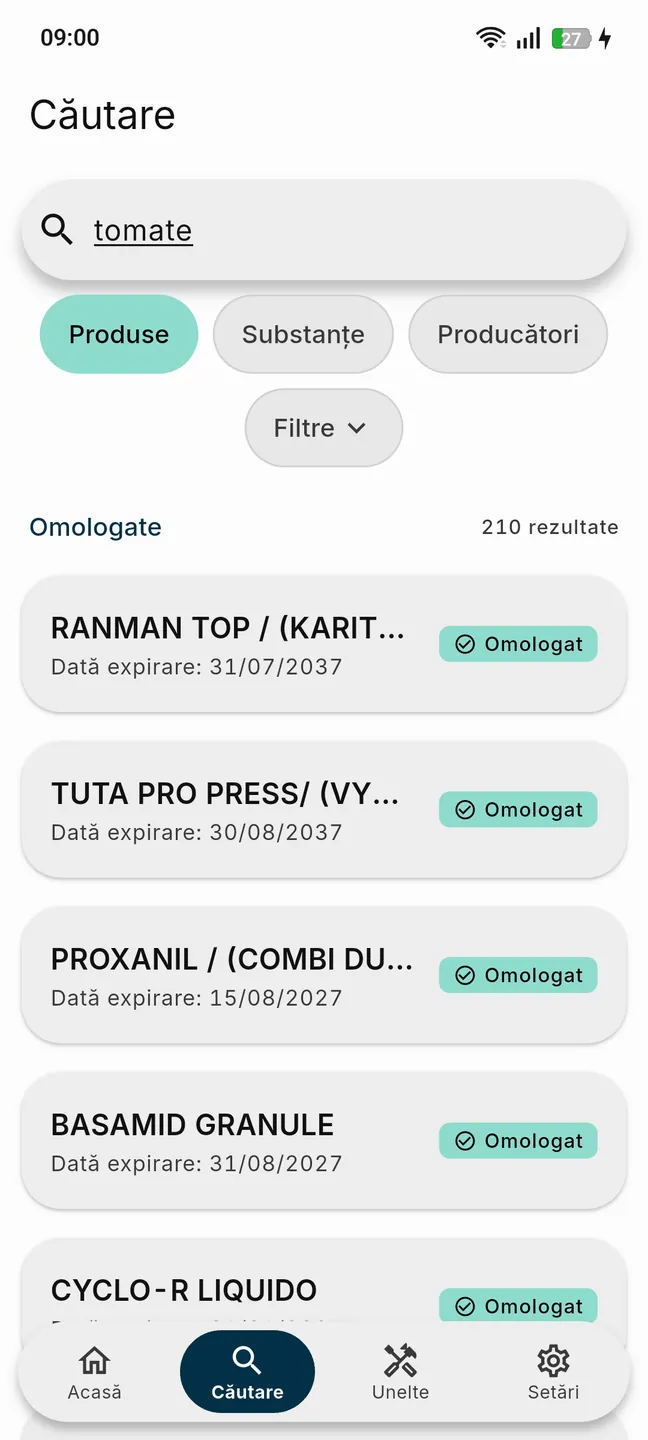
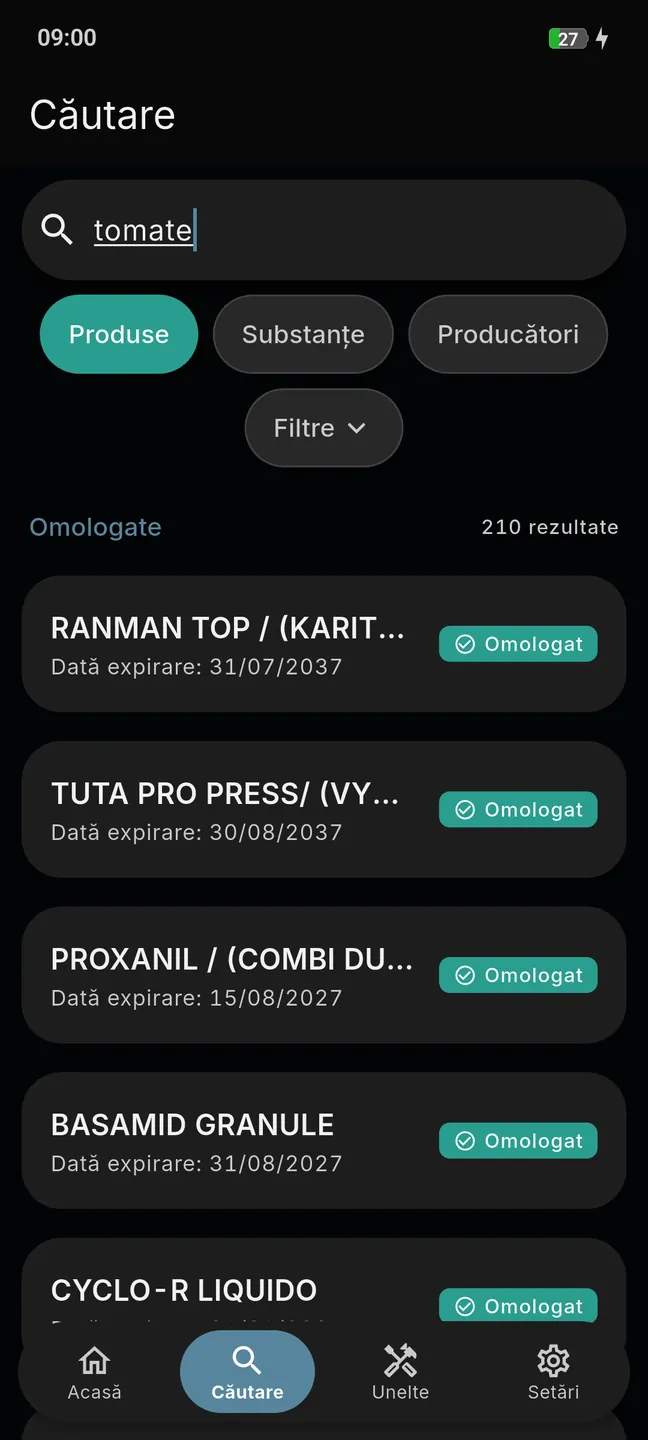
Search runs on product name, active substance or crop — wheat, maize, sunflower, oilseed rape, potato, grapevine, apple — and results appear as you type.
- three search modes: products, substances, producers — the text you typed survives the switch;
- results split into two counted sections: authorised and not authorised;
- each result with its name, expiry date and status badge.
- narrow the search to name, crop, pest or certificate number;
- filter by status, pest category, product category, toxicity group, active substance, producer;
- choose a crop from a picker — from cereals, maize and oilseed rape to the vineyard, the orchard and vegetables — and see it as a chip above the results;
- filter by expiry, including “valid now”;
- narrow the results to “My products”;
- long-press two results to start a comparison between them;
- clear every filter with one press.
Search is local: it runs in flight mode, just as fast. The crop and pest-category filters apply to one and the same registered use — “tomatoes + diseases” means a single use that says both, not a product that has them on separate rows. Once you set an expiry limit, products with no expiry date drop out of the results. Class and formulation type are not filters.
03 · Product sheet: dose, pre-harvest interval, status
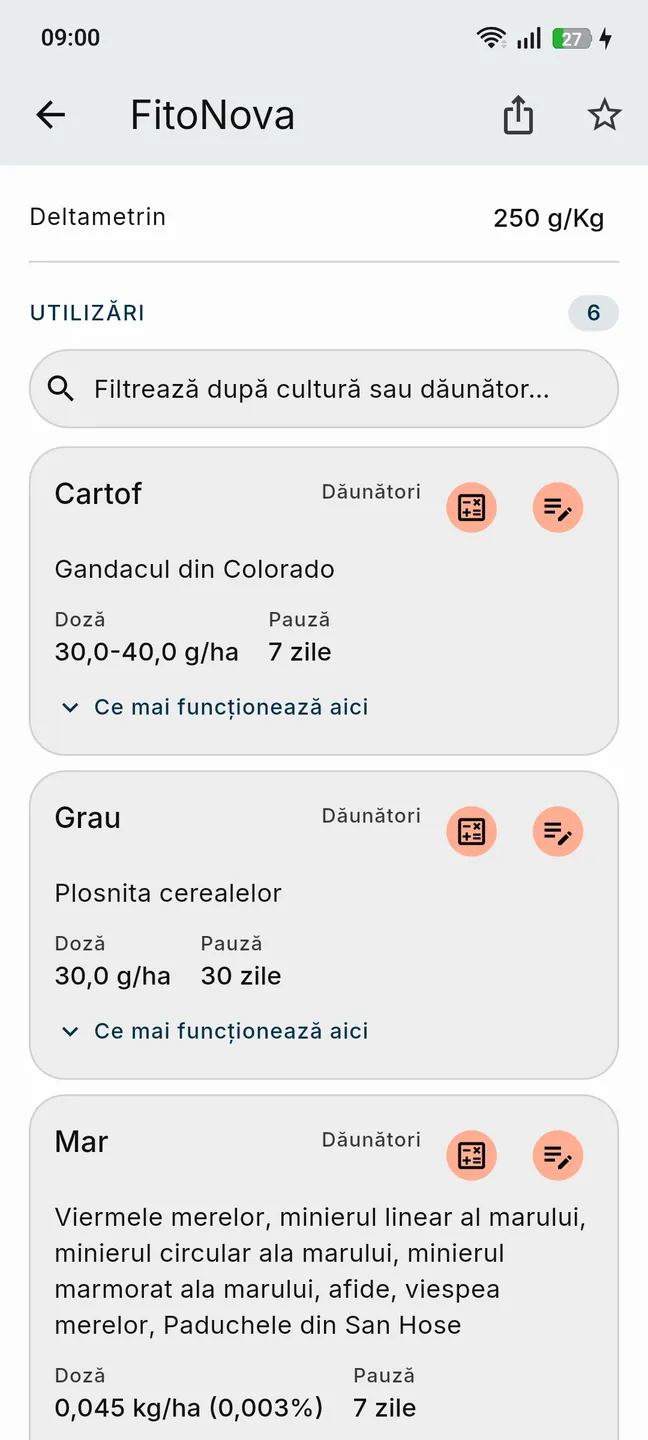
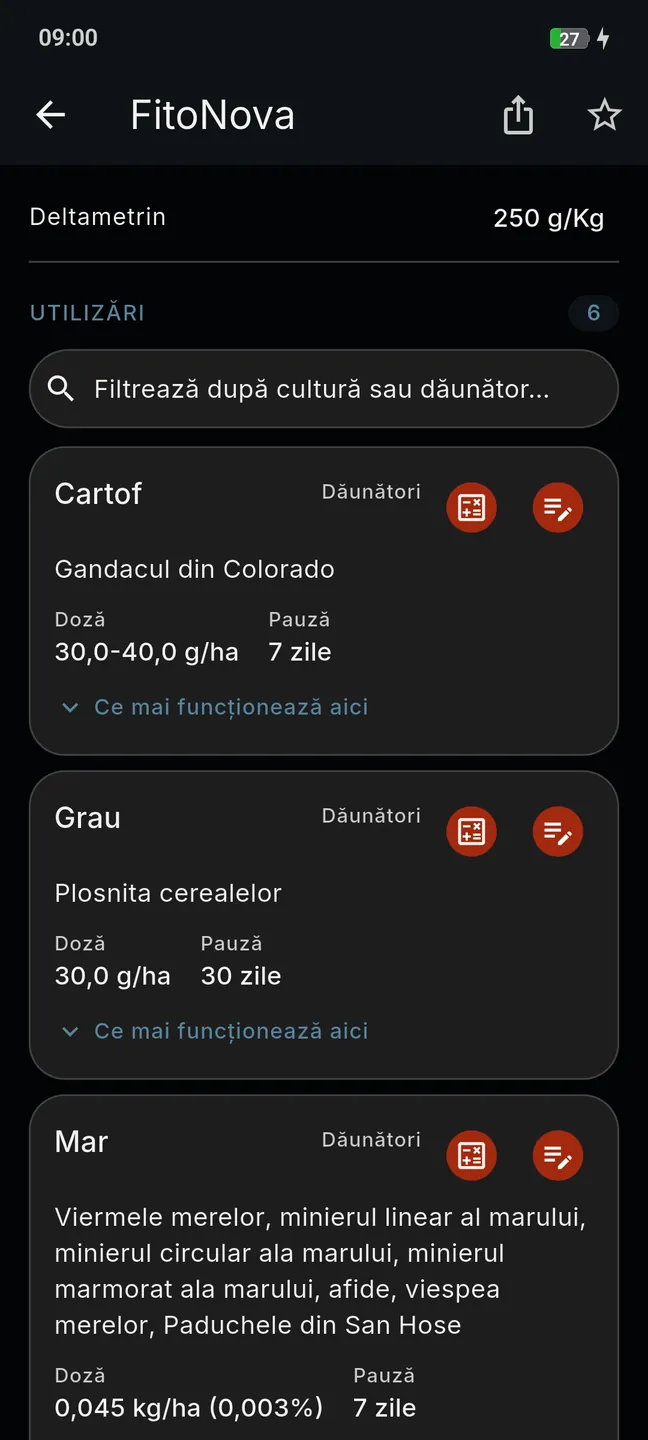
The sheet shows what the registry says about a product, in the order that matters. What each field means — active substance, authorised dose, pre-harvest interval, toxicity category — is explained in the glossary of registry terms.
Below the official data the sheet also shows the average of the ratings FitoNova users have given the product, from one star to five, along with the number of votes behind it; you can give your own rating, and withdraw it at any time. It is the community's opinion, not our position and not agronomic advice — what the registry says stands above it, untouched.
- the name and the status; if the product has been withdrawn, the reason comes first on the screen;
- the details: category, class, formulation type, toxicity group, the authorisation certificate with its number and date, the expiry date, the application number and date;
- if the certificate expires within the next six months, a line with the days left;
- the authorisation holders and the active substances with their amounts;
- the registered uses: crop, pest category, the named pests, and — as chips — the dose, the pre-harvest interval and the number of treatments.
- add the product to “My products”;
- compare it with another product;
- share the sheet as text or as a PDF — or just a single use;
- open the calculator for a particular use;
- record a treatment from that use, with the fields already filled in;
- open the list of other authorised products registered for the same crop and pest category — those in “My products” come first.
Fields the registry leaves empty are not shown at all. The calculator button appears only on uses whose dose can be read without doubt. The list of alternatives is a list of facts from the registry, not a recommendation. The product PDF is in Romanian whatever the app's language, and is produced on the phone, with no connection.
04 · Treatment log: the register asked for at an inspection
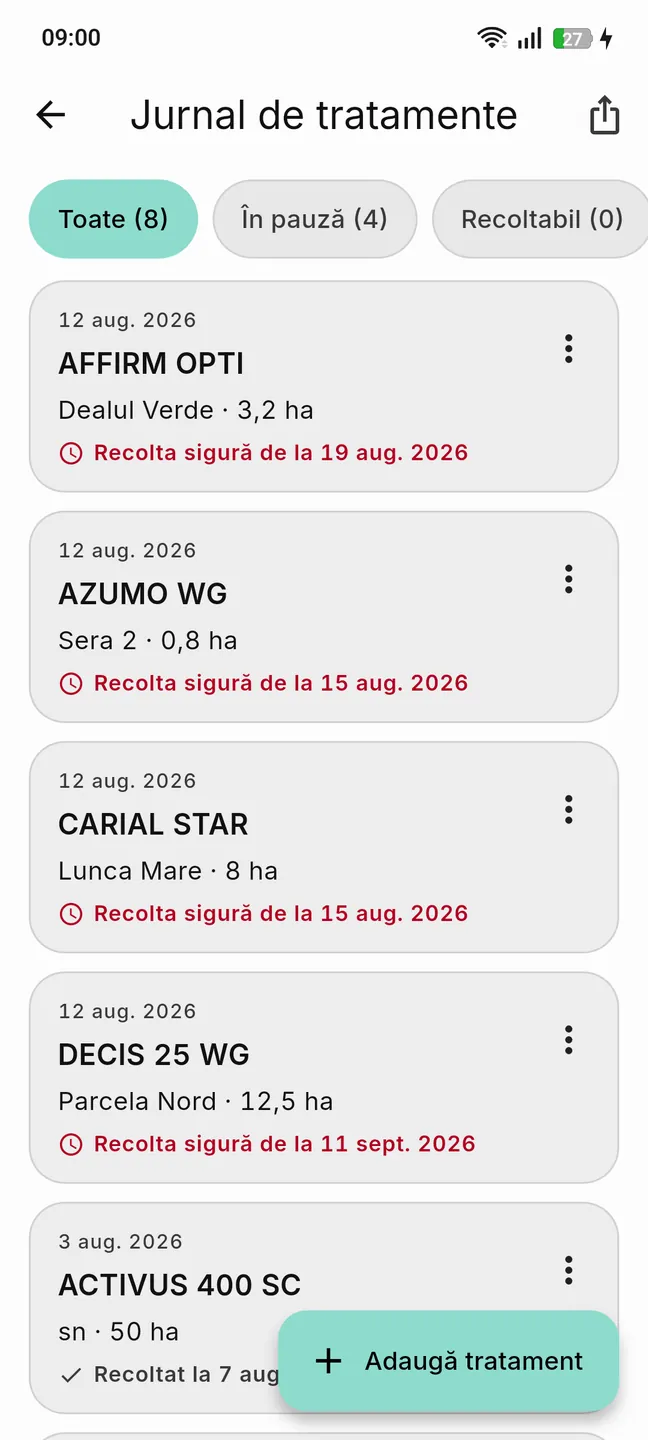
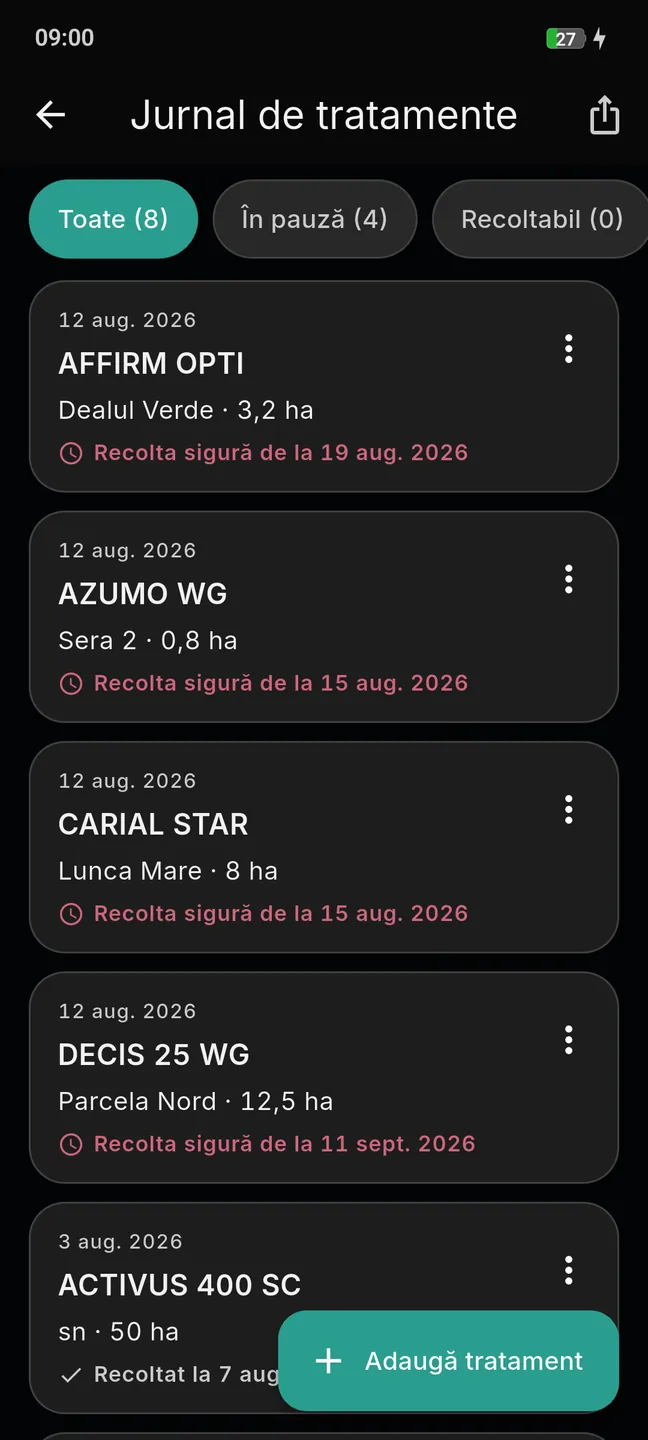
The logbook is your record of treatments, kept in the app and exportable in the form the official register asks for.
You describe a plot once — name, APIA code, area in hectares, the crop on it now — and then pick it in the treatment form: the plot name, the area and the crop fill themselves in, and the quantity used is worked out from the dose and the area, marked for you to check. Each plot has a page of its own, with its details, the history of the treatments on it — all, unharvested or harvested, ordered by date — and an export button of its own. Plots are saved to your account like the logbook, so they come with you to a new phone.
A treatment can also be planned: when you add one you choose “done” or “planned”, and for a planned one the day and time at which the app reminds you. Planned treatments sit in the logbook with a label of their own, and on the home screen under “Next 7 days”, and they stay out of the register until you mark them done. When the same product comes back to the same plot in the same year, the logbook tells you which treatment in the run this is, and warns you if you go past the authorised maximum.
- a filter menu — all, waiting, ready to harvest, harvested, planned — and a sort menu, by date, product or plot;
- for each treatment: the date, the product, the plot and the area;
- a line about the harvest: safe from which date, ready to harvest, or harvested on;
- on a repeated treatment, which one this is with the same product on the same plot, and a warning when you exceed the authorised maximum;
- under every text field, how many characters you have left.
- choose, as you add it, between a treatment done and a treatment planned; for a planned one, the day and time of the reminder;
- add a treatment from a product on your list, from the catalogue, or by hand;
- mark a planned treatment as done, choosing the date;
- pick one of your saved plots, so the plot, the area, the crop and the quantity used fill themselves in;
- mark the harvest, choosing the date;
- edit or delete an entry;
- export a single entry as a PDF;
- long-press to select several entries and export exactly that selection.
Product, crop, plot, area and date are required; the remaining fields may stay empty. A harvest date can be neither before the treatment nor in the future. Where the registry's pre-harvest interval cannot be read as a number of days, the entry gets no harvest line and no reminder — silence, rather than an approximate date. The product's details are copied into the entry when you record it, so a catalogue update never rewrites your logbook. A planned treatment cannot be set to a time in the past. The whole screen, exports included, works with no connection.
05 · Exporting the register: official PDF and Excel
Export starts from the logbook. You choose what goes in — all entries, unharvested, harvested, or exactly the entries you selected — and the format: official PDF or Excel (XLSX). The responsible person's name is required and is remembered for next time.
You can narrow it further: to one or several of your saved plots, to a year, or to a period between two dates. A live count tells you, before you start, how many entries the export will hold. The PDF header carries the choice through, on the “Parcela: …” and “Anul/Perioada: …” lines, and the filename says it just as plainly — registru-tratamente-2026-parcela-nord.pdf. The sixteen columns are unchanged.
Both formats carry the same sixteen columns, in the official template's order:
| # | Column | What it holds |
|---|---|---|
| 1 | Date of application | the treatment date |
| 2 | Crop | the crop treated |
| 3 | Place/plot | the plot recorded |
| 4 | Time of application | time of day or growth stage, if filled in |
| 5 | Pest | the pest, if filled in |
| 6 | Name of the product used | the product's name |
| 7 | Authorisation certificate no. | the number copied from the catalogue when recorded |
| 8 | Active substances | the substances copied when recorded |
| 9 | Authorised dose | the registry's dose, as text |
| 10 | Dose applied | the dose actually used, if filled in |
| 11 | Area (ha) | the area recorded |
| 12 | Quantity used (kg, l) | computed when the calculator can read the dose — a per-hectare value or range, a percentage with a spray volume, a seed rate — and the area is a plain number; otherwise left blank |
| 13 | Pre-harvest interval (days) | the interval, as the registry's text |
| 14 | Name of the responsible person / signature | the name given at export; in the PDF, with room to sign |
| 15 | Date harvesting began | the harvest date, if marked |
| 16 | No. and date of the release-for-consumption document | left blank: that document is issued on paper, outside the app |
A4 landscape, with the register's title, the responsible person's name, the period covered and the date it was produced; page numbering, room for a signature, and the note that the register is kept for at least three years. The title is in Romanian whatever the app's language.
One sheet, with the header row frozen and the columns sized to their content. Dates are written as day.month.year text so a spreadsheet cannot reinterpret them. It carries no header block of its own: only the sixteen columns and the rows.
The logbook's free-text note has no column and is not exported. Column 12 stays blank whenever the calculator cannot read the dose without doubt — a range, a text carrying two quantities, a dose it refuses — a wrong quantity on a legal document is worse than a cell you fill in by hand. Planned treatments do not go into the export until they are marked done. Entries are exported oldest first. The export needs no connection.
06 · Dose calculator: how much product goes in the tank
The calculator says how much product to measure out for your area or your tank — the five hectares of wheat, or the rows of the vineyard — starting from the authorised dose.
- choose the product from your list or the catalogue, or type the dose by hand;
- enter the hectares, the litres in the tank, or the tonnes, kilograms or units of seed, as the dose requires;
- above the field, see the dose as read from the registry, so you know what the figure is worked out from;
- replay a calculation from the history, or delete one from it.
The calculator reads doses as the registry writes them: per-hectare values or ranges, percentages, dual doses (l/ha and %), rates per tonne, kilogram, hundred kilograms or unit of seed, per hectolitre and per square metre — and it understands the text that comes after a dose, the “from flowering” sort. What it cannot read without doubt — two quantities that contradict each other, a “maximum” ceiling, a missing decimal — it refuses outright: the dose is shown as in the registry, with a calm note that it cannot be calculated, not with an error. Ranges stay ranges — no midpoint is taken. A product that is not authorised raises a warning. The history keeps the latest calculations and is saved to the account.
07 · My products: your own list, certificates watched
“My products” has taken the place of favourites: it is the list of the products you work with — what sits in the store, what you sell, what you use year after year. It has a page of its own, and the app keeps an eye on their certificates.
- the list, each product with its status badge and expiry date;
- a warning line if any product on the list is withdrawn or expires within six months — one tap filters the list to them;
- how many times you have opened each product.
- add a product from its sheet, or every product of one producer or one active substance in a single tap, with a confirmation that says how many of them are withdrawn;
- search the list, filter it — all, authorised, withdrawn, expiring soon — and sort by date added, name, expiry or number of openings;
- long-press to select several products and remove them, with undo;
- see your own products first under “what else works here”, and narrow search to them.
The list is saved to your account and comes with you to a new phone. It changes nothing of what the registry says: a withdrawn product stays withdrawn on your list too, marked as such.
08 · Comparison: two products, side by side
When a product has to be replaced, or you are choosing between two, the comparison puts them next to each other with the registry data lined up row by row.
- the status and certificate of each;
- the active substances, with the shared ones highlighted;
- the uses, aligned by crop and pest: the same crop and the same pest on the same row, with each product's dose and pre-harvest interval;
- a “shared / all” switch, to see only what they have in common, or everything.
- start a comparison from a product sheet, from search — long-press two results — or from Tools, where you pick two products and find the pairs you compared recently;
- swap the columns;
- share the comparison as text.
The comparison lines up what the registry says; it does not say which product is better. Two products with the same active substances can have different uses, and the other way round. It works with no connection.
09 · Tank mix: how much of each product per fill
When several products go into the same tank, the tool works out how much of each goes into one fill, starting from the tank volume and the spray volume per hectare.
- enter the tank volume and the litres of spray per hectare; the app tells you how many hectares one fill covers;
- add the products, from your list or the catalogue, or with a dose typed by hand;
- for each product, see the amount for one fill and for the whole area;
- the tank values are remembered for next time.
The tool calculates amounts; it does not check whether the products can be mixed — compatibility is read off the label, and the tool says so every time. A seed treatment does not go into the tank and is marked as such. Doses the calculator cannot read stay as text, with no amount.
10 · Sharing: a product sheet, one use or a comparison, as text or PDF
What you see in the app can be passed on: to a colleague, a customer, an agronomist.
- a product's whole sheet;
- a single use — crop, pest, dose, pre-harvest interval;
- a comparison of two products.
- as text, short, suited to WhatsApp or SMS;
- as a PDF, the full sheet, suited to email;
- through any app on the phone that accepts text or files.
The text and the PDF are produced on the phone, with no connection; the sending itself is done by the app you choose. The PDF is in Romanian whatever the app's language, because it reproduces the registry.
11 · Guides and first steps: how you learn the app
The first time you open the app, it walks you through the real screens in seven steps: search for a product, open the first result, add it to your products, open the calculator, type in the area, log the treatment. The real button is lit up on the screen, and you are the one who taps it.
- a short guide the first time you use each tool — the logbook, plots, calculator, tank mix, comparison, “My products”, the product sheet;
- a “?” button on every tool, which reopens its guide;
- the “Guides” page in Settings, with every guide and “First steps”.
- skip a step of First steps, or leave altogether — the app asks first;
- run First steps again at any time, from Settings → Guides;
- read in “What's new” what changed in each version.
The guides work offline. First steps uses a real product from the catalogue, so it needs the catalogue downloaded.
12 · Settings and account
- choose the theme, light or dark;
- choose the language: Romanian, Hungarian, English or German;
- see your account and change the display name;
- switch each of the four kinds of notification on or off;
- see and manage the subscription;
- open the guide for any tool, and run First steps again;
- read what is new in each version;
- send an idea or report a problem in a few lines, saying which of the two it is;
- open the terms and the privacy policy;
- sign out, or delete the account.
Theme, language, the guides and “What's new” work offline. Renaming, signing out, deleting the account, managing the subscription and sending an idea need a connection; the idea or problem reaches us, the people who make the app, and nobody else. The notification switches also follow the system permission: revoke it in the phone's settings and they turn themselves off. Deleting the account is final, stops the subscription renewing and clears the data on the phone as well; the legal texts are the ones on this site.
13 · Alerts and reminders: withdrawals, harvest days, planned treatments, certificates
There are exactly four kinds of notification, and each can be switched off separately in settings.
- Withdrawal alerts
- You are notified, as the catalogue updates, when a product in “My products”, or one used in a treatment, moves from authorised to another status. Only that change sends anything: a product that has just appeared, a renewal, or a move between two statuses that are not “authorised” send nothing. The notification opens the product sheet. The first time you add a product, the app asks you once whether you want these alerts.
- Harvest reminder
- On the morning the pre-harvest interval of a treatment runs out, you get a local notification naming the crop and the plot — the maize on the north plot, the apple orchard behind the house. The phone produces it, not a server, so it works with no connection. Where the registry's interval cannot be read as a number of days, no reminder is scheduled at all.
- Planned treatment reminder
- On the day and at the time you chose when you planned the treatment, the phone reminds you which product and which plot. It is local, like the harvest reminder, and goes away when you mark the treatment done or delete it.
- Notice before a certificate expires
- For the products in “My products”, the phone tells you six months, three months, one month and one week before the certificate expires, and on the day. Products reaching the same threshold on the same day come in one notification in the morning, not one each.
There are no periodic digests and no promotional messages. The notification permission is never asked for at launch.
14 · Without a signal: what works offline and what needs internet
- opening the app, however long it has been since you last used it in coverage;
- search, the product sheets, the calculator, the tank mix, the comparison, the logbook, the plots, “My products”, the PDF and Excel exports, sharing as text or PDF, the guides;
- the harvest, planned-treatment and certificate-expiry reminders;
- the rating average, as it stood when the sheet was last opened with a connection;
- everything on the home screen.
- the first launch: signing in and downloading the catalogue;
- updating the catalogue;
- giving or withdrawing a rating;
- withdrawal alerts, managing the account and the subscription, sending an idea, taking over the slot on a new phone.
The logbook, the plots, “My products” and the calculation history are also saved to your account, so you find them again on a new phone. One subscription means one active phone: on the new phone you take over the slot, and the old one loses access. The catalogue is replaced whole on every update, but your own data sits separately and is never touched.